Part 1
요약·해설
Windows에서 AutoPTS client와 server를 함께 실행하고 nRF52840 DK를 PTS qualification workflow에 연결합니다.
Windows 10
nRF52840 DK
COM · socat
Part 2
접을 수 있는 영어 원문 전체
영어 원문 전체 펼치기
50014C6B67BEAC512436A12A9CFDDEFFB582EF8B8E2554C88B553B0A2E43CE43
.. _autopts-win10:

AutoPTS on Windows 10 with nRF52 board
#######################################

This tutorial shows how to setup AutoPTS client and server to run both on
Windows 10. We use WSL1 with Ubuntu only to build a Zephyr project to
an elf file, because Zephyr SDK is not available on Windows yet.
Tutorial covers only nrf52840dk.

.. contents::
    :local:
    :depth: 2

Update Windows and drivers
===========================

Update Windows in:

Start -> Settings -> Update & Security -> Windows Update

Update drivers, following the instructions from your hardware vendor.

Install Python 3
=================

Download and install `Python 3 <https://www.python.org/downloads/>`_.
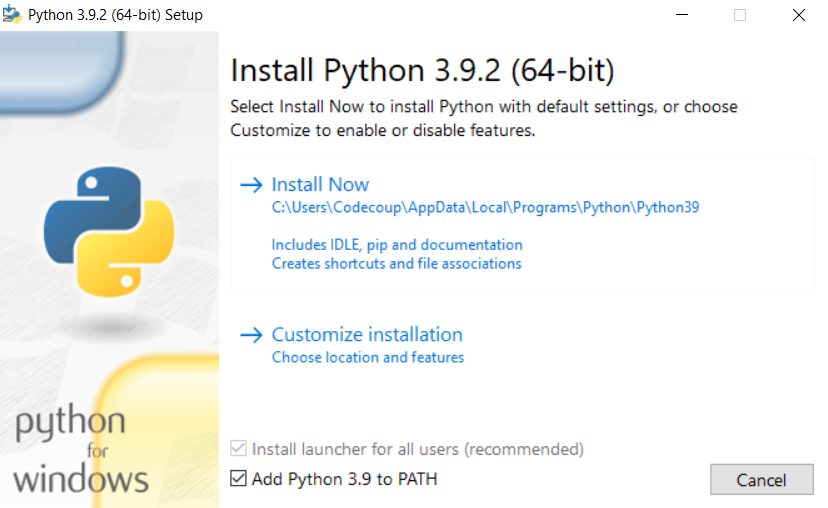
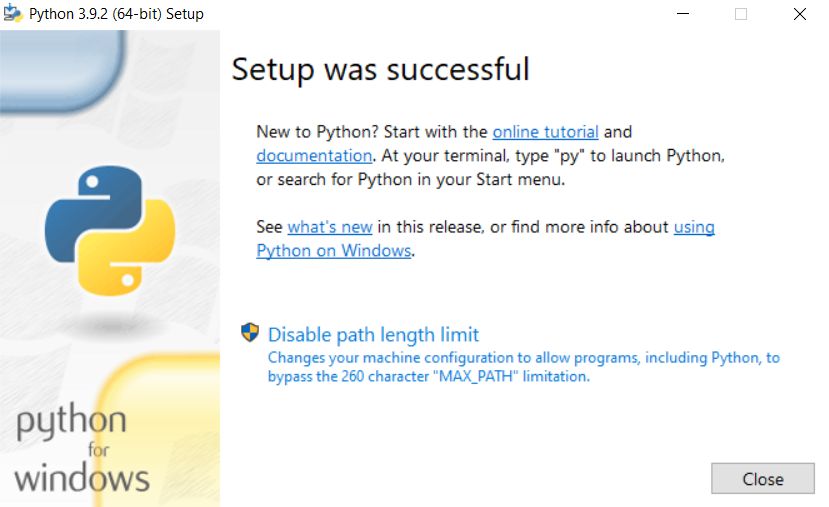
Setup was tested with versions >=3.8. Let the installer add the Python
installation directory to the PATH and disable the path length limitation.

.. image:: ../../../../../connectivity/bluetooth/autopts/install_python1.png
   :height: 300
   :width: 450
   :align: center

.. image:: ../../../../../connectivity/bluetooth/autopts/install_python2.png
   :height: 300
   :width: 450
   :align: center

Install Git
============

Download and install `Git <https://git-scm.com/downloads>`_.
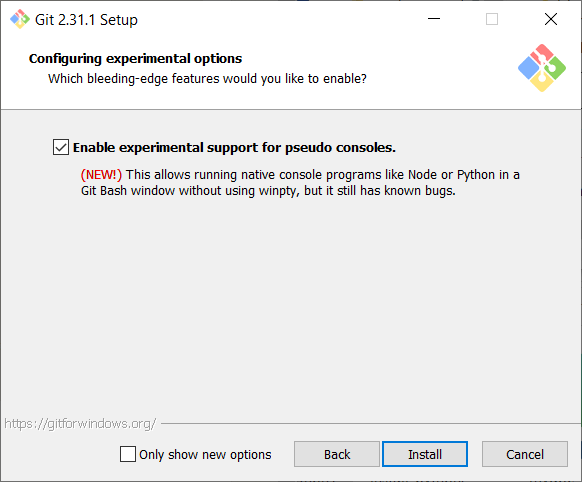
During installation enable option: Enable experimental support for pseudo
consoles. We will use Git Bash as Windows terminal.

.. image:: ../../../../../connectivity/bluetooth/autopts/install_git.png
   :height: 350
   :width: 400
   :align: center

Install PTS 8
==============

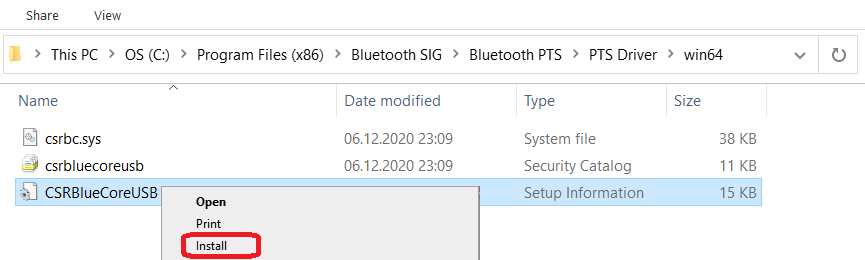
Install latest PTS from https://www.bluetooth.org. Remember to install
drivers from installation directory
"C:/Program Files (x86)/Bluetooth SIG/Bluetooth PTS/PTS Driver/win64/CSRBlueCoreUSB.inf"

.. image:: ../../../../../connectivity/bluetooth/autopts/install_pts_drivers.png
   :height: 250
   :width: 850
   :align: center

.. note::

    Starting with PTS 8.0.1 the Bluetooth Protocol Viewer is no longer included.
    So to capture Bluetooth events, you have to download it separately.

Setup Zephyr project for Windows
=================================

Perform Windows setup from `Getting Started Guide <https://docs.zephyrproject.org/latest/getting_started/index.html>`_.

Install nrftools
=================

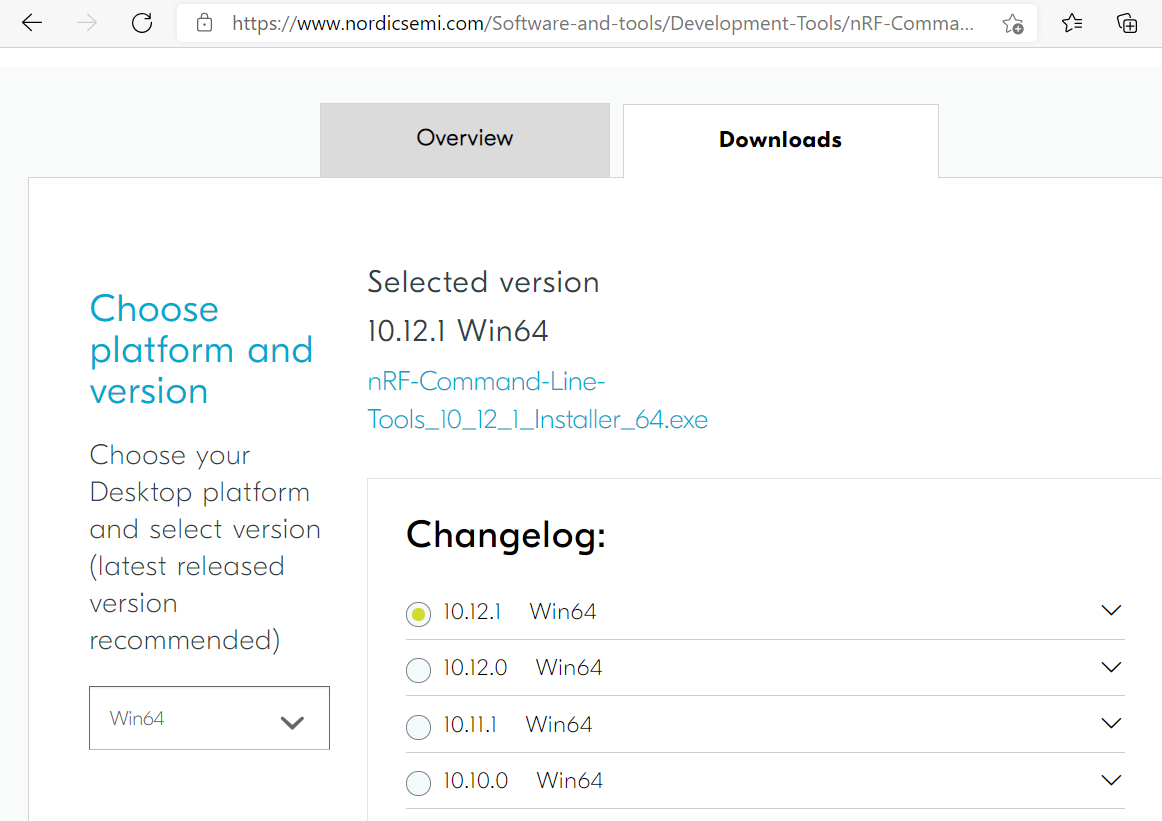
On Windows download latest nrftools (version >= 10.12.1) from site
https://www.nordicsemi.com/Software-and-tools/Development-Tools/nRF-Command-Line-Tools/Download
and run default install.

.. image:: ../../../../../connectivity/bluetooth/autopts/download_nrftools_windows.png
   :height: 350
   :width: 500
   :align: center

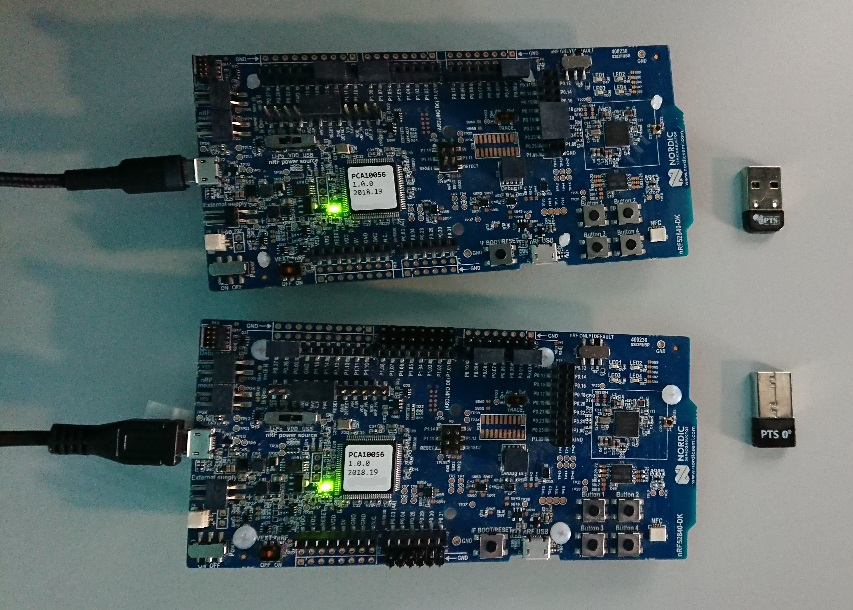
Connect devices
================

.. image:: ../../../../../connectivity/bluetooth/autopts/devices_1.png
   :height: 400
   :width: 600
   :align: center

.. image:: ../../../../../connectivity/bluetooth/autopts/devices_2.png
   :height: 700
   :width: 500
   :align: center

Flash board
============

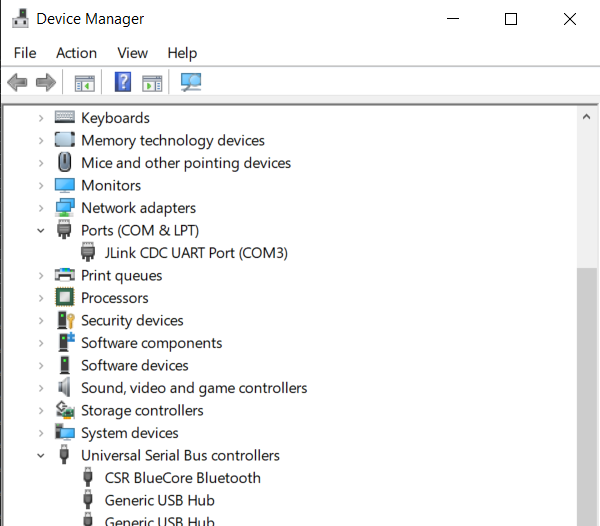
In Device Manager find COM port of your nrf board. In my case it is COM3.

.. image:: ../../../../../connectivity/bluetooth/autopts/device_manager.png
   :height: 400
   :width: 450
   :align: center

In Git Bash, go to zephyrproject

.. code-block::

    cd ~/zephyrproject

Build the auto-pts tester app

.. code-block::

    west build -p auto -b nrf52840dk/nrf52840 zephyr/tests/bluetooth/tester/

You can display flashing options with:

.. code-block::

    west flash --help

and flash board with built earlier elf file:

.. code-block::

    west flash --skip-rebuild --board-dir /dev/ttyS2 --elf-file ~/zephyrproject/build/zephyr/zephyr.elf

Note that west does not accept COMs, so use /dev/ttyS2 as the COM3 equivalent,
/dev/ttyS2 as the COM3 equivalent, etc.(/dev/ttyS + decremented COM number).

Setup auto-pts project
=======================

In Git Bash, clone project repo:

.. code-block::

    git clone https://github.com/intel/auto-pts.git

Go into the project folder:

.. code-block::

    cd auto-pts

Install required python modules:

.. code-block::

   pip3 install --user wheel
   pip3 install --user -r autoptsserver_requirements.txt
   pip3 install --user -r autoptsclient_requirements.txt

Install socat.exe
==================

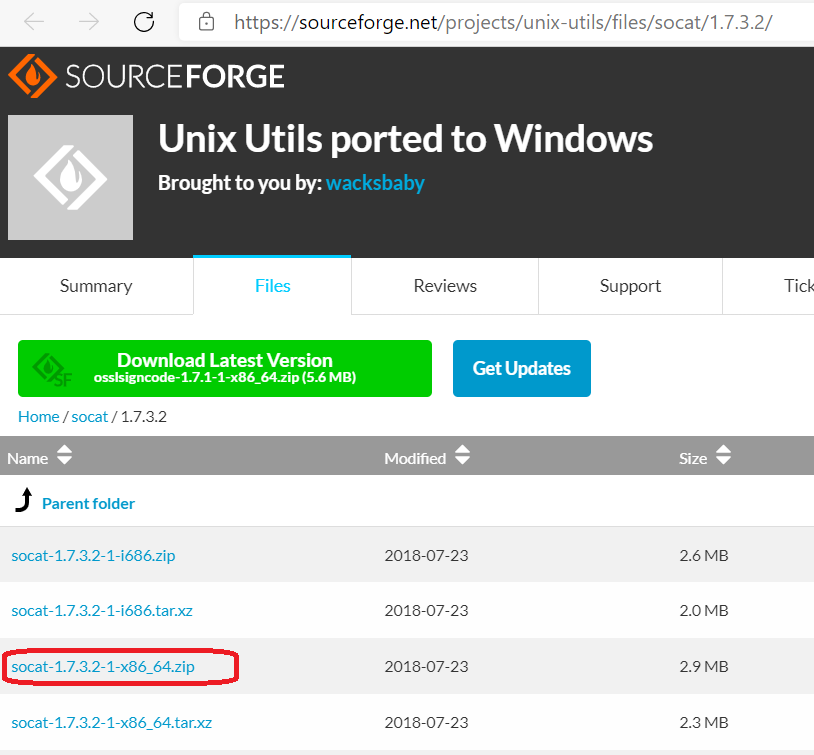
Download and extract socat.exe from https://sourceforge.net/projects/unix-utils/files/socat/1.7.3.2/
into folder ~/socat-1.7.3.2-1-x86_64/.

.. image:: ../../../../../connectivity/bluetooth/autopts/download_socat.png
   :height: 400
   :width: 450
   :align: center

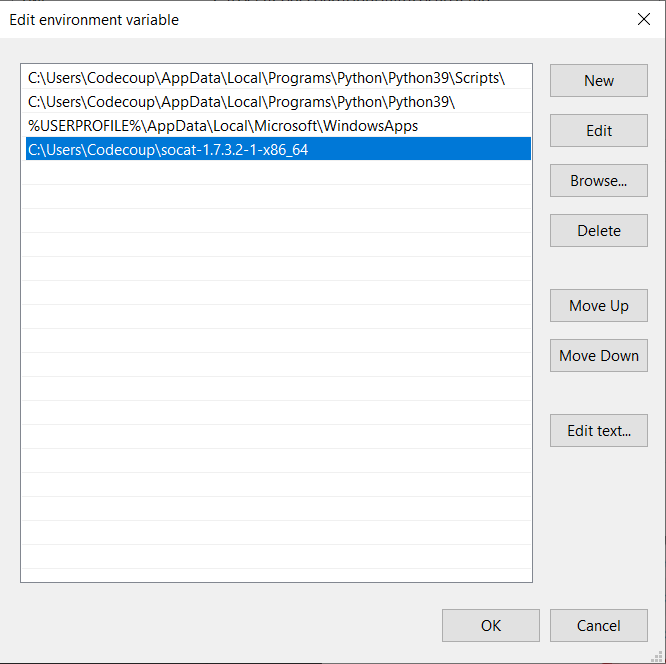
Add path to directory of socat.exe to PATH:

.. image:: ../../../../../connectivity/bluetooth/autopts/add_socat_to_path.png
   :height: 400
   :width: 450
   :align: center

Running AutoPTS
================

Server and client by default will run on localhost address. Run server:

.. code-block::

    python ./autoptsserver.py -S 65000

.. image:: ../../../../../connectivity/bluetooth/autopts/autoptsserver_run.png
   :height: 200
   :width: 800
   :align: center

.. note::

    If the error "ImportError: No module named pywintypes" appeared after the fresh setup,
    uninstall and install the pywin32 module:

    .. code-block::

        pip install --upgrade --force-reinstall pywin32

Run client:

.. code-block::

    python ./autoptsclient-zephyr.py zephyr-master ~/zephyrproject/build/zephyr/zephyr.elf -t COM3 -b nrf52 -S 65000 -C 65001

.. image:: ../../../../../connectivity/bluetooth/autopts/autoptsclient_run.png
   :height: 200
   :width: 800
   :align: center

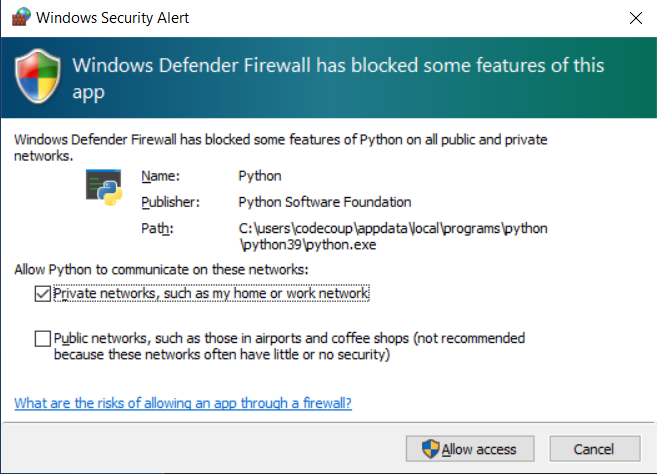
At the first run, when Windows asks, enable connection through firewall:

.. image:: ../../../../../connectivity/bluetooth/autopts/allow_firewall.png
   :height: 450
   :width: 600
   :align: center

Troubleshooting
================

- "When running actual hardware test mode, I have only BTP TIMEOUTs."

This is a problem with connection between auto-pts client and board. There are many possible causes. Try:

- Clean your auto-pts and zephyr repos with

.. warning::

    This command will force the irreversible removal of all uncommitted files in the repo.

.. code-block::

    git clean -fdx

then build and flash tester elf again.

- If you have set up Windows on virtual machine, check if guest extensions are installed properly or change USB compatibility mode in VM settings to USB 2.0.

- Check, if firewall in not blocking python.exe or socat.exe.

- Check if board sends ready event after restart (hex 00 00 80 ff 00 00). Open serial connection to board with e.g. PuTTy with proper COM and baud rate. After board reset you should see some strings in console.

- Check if socat.exe creates tunnel to board. Run in console

.. code-block::

    socat.exe -x -v tcp-listen:65123 /dev/ttyS2,raw,b115200

where /dev/ttyS2 is the COM3 equivalent. Open PuTTY, set connection type to Raw, IP to 127.0.0.1, port to 65123. After board reset you should see some strings in console.
Part 3
한국어 전문 번역
nRF52 board를 사용하는 Windows 10 AutoPTS
AutoPTS client와 server를 모두 Windows 10에서 실행하는 절차입니다. Zephyr SDK가 당시 Windows에 제공되지 않았으므로 WSL1 Ubuntu는 Zephyr project를 ELF로 build할 때만 사용합니다. 이 문서는 nrf52840dk만 다룹니다.
Windows와 driver 갱신
Start -> Settings -> Update & Security -> Windows Update에서 Windows를 갱신하고 hardware vendor 지침에 따라 driver도 갱신합니다.
Python 3 설치
Python 3 version 3.8 이상을 설치합니다. Python directory를 PATH에 추가하고 path length 제한을 해제합니다.
Git 설치
Git 설치 중 Enable experimental support for pseudo consoles를 켜고 Git Bash를 terminal로 사용합니다.
PTS 8 설치
Bluetooth SIG에서 최신 PTS를 설치하고 C:/Program Files (x86)/Bluetooth SIG/Bluetooth PTS/PTS Driver/win64/CSRBlueCoreUSB.inf driver를 설치합니다.
Windows용 Zephyr project와 nrftools
Zephyr Getting Started Guide의 Windows setup을 수행합니다. Nordic download site에서 version 10.12.1 이상의 최신 nrftools를 받아 기본 설정으로 설치합니다.
Device 연결
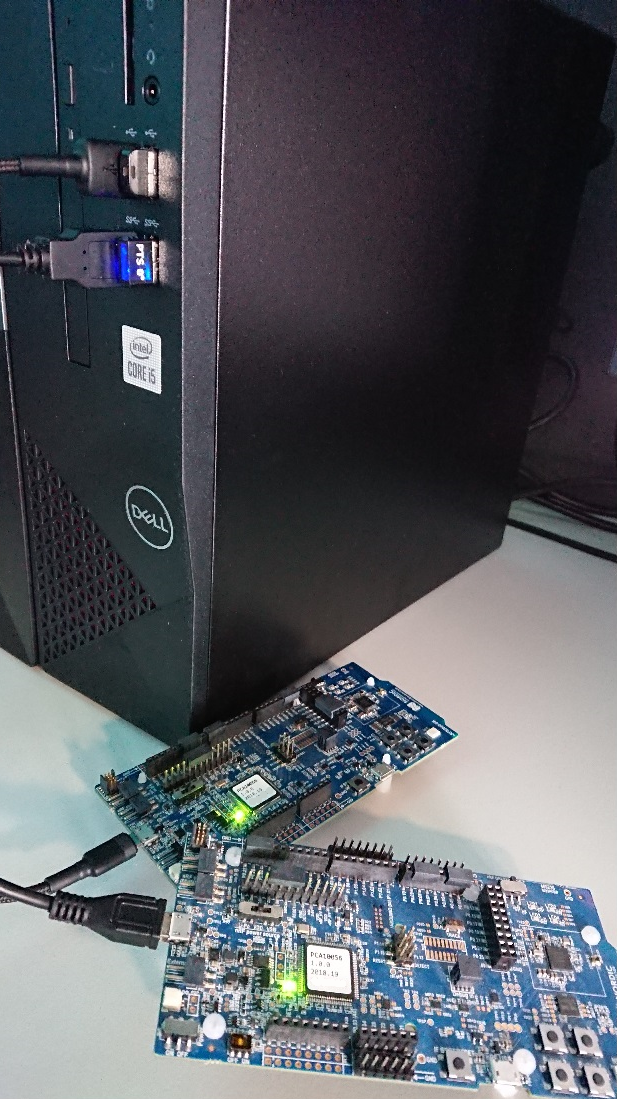
Board build와 flash
Device Manager에서 nRF board COM port를 찾습니다. 예시는 COM3입니다.
Git Bash에서 Zephyr project directory로 이동합니다.
cd ~/zephyrprojectAutoPTS tester application을 build합니다.
west build -p auto -b nrf52840dk/nrf52840 zephyr/tests/bluetooth/tester/Flash option을 확인할 수 있습니다.
west flash --help앞서 만든 ELF를 board에 flash합니다.
west flash --skip-rebuild --board-dir /dev/ttyS2 --elf-file ~/zephyrproject/build/zephyr/zephyr.elfwest는 COM 이름을 직접 받지 않으므로 COM3에는 /dev/ttyS2처럼 COM 번호에서 1을 뺀 /dev/ttyS<n>를 사용합니다.
auto-pts project 준비
Git Bash에서 repository를 clone하고 project directory로 이동합니다.
git clone https://github.com/intel/auto-pts.git cd auto-ptsServer와 client 양쪽 Python requirement를 설치합니다.
pip3 install --user wheel
pip3 install --user -r autoptsserver_requirements.txt
pip3 install --user -r autoptsclient_requirements.txt
socat.exe 설치
SourceForge에서 socat.exe를 받아 ~/socat-1.7.3.2-1-x86_64/에 풀고 해당 directory를 PATH에 추가합니다.
AutoPTS 실행
Server와 client는 기본 localhost에서 동작합니다. Server port를 65000으로 지정해 실행합니다.
python ./autoptsserver.py -S 65000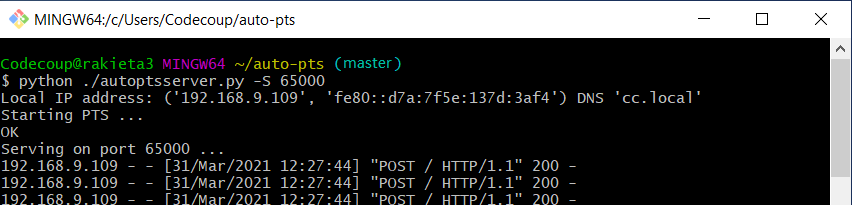
Client는 COM3, nRF52와 server/client port를 지정해 실행합니다.
python ./autoptsclient-zephyr.py zephyr-master ~/zephyrproject/build/zephyr/zephyr.elf -t COM3 -b nrf52 -S 65000 -C 65001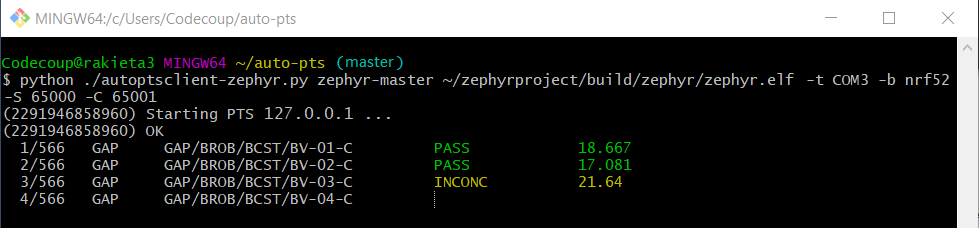
첫 실행 때 Windows가 요청하면 firewall 연결을 허용합니다.
Troubleshooting: hardware mode에서 BTP TIMEOUT만 발생
AutoPTS client와 board 사이 연결 문제이며 원인은 여러 가지일 수 있습니다. 다음을 차례로 점검합니다.
먼저 auto-pts와 Zephyr repository를 정리합니다.
git clean -fdx- Tester ELF를 다시 build하고 flash
- VM을 썼다면 guest extension 설치 상태를 확인하거나 USB compatibility를 USB 2.0으로 변경
python.exe또는socat.exe가 firewall에 막히지 않았는지 확인- Board restart 뒤 ready event
00 00 80 ff 00 00를 보내는지 올바른 COM/baud의 PuTTY serial connection으로 확인
socat.exe가 board tunnel을 만드는지 다음 명령으로 확인합니다.
socat.exe -x -v tcp-listen:65123 /dev/ttyS2,raw,b115200/dev/ttyS2는 COM3에 해당합니다. PuTTY connection type을 Raw, IP를 127.0.0.1, port를 65123으로 설정하면 board reset 뒤 console string이 보여야 합니다.
Source
출처
영어 원문에는 문단, 문서 지시문, 표, 코드, 코드 심벌, 경로를 그대로 보존했습니다.