Part 1
요약·해설
Linux Zephyr build와 Windows PTS VM을 static network로 연결하고 PTS dongle, AutoPTS server/client, hardware tty를 구성하는 실전 절차입니다.
Linux
Windows VM
QEMU · native_sim · nRF52
Part 2
접을 수 있는 영어 원문 전체
영어 원문 전체 펼치기
C897F78104AA5A42AF49694F7700982D8446E12E023DBA8170220E1E0F5E3327
.. _autopts-linux:

AutoPTS on Linux
################

This tutorial shows how to setup AutoPTS client on Linux with AutoPTS server running on Windows 10
virtual machine. Tested with Ubuntu 20.4 and Linux Mint 20.4.

You must have a Zephyr development environment set up. See
:ref:`getting_started` for details.

Supported methods to test zephyr bluetooth host:

- Testing Zephyr Host Stack on QEMU

- Testing Zephyr Host Stack on :ref:`native_sim <native_sim>`

- Testing Zephyr combined (controller + host) build on Real hardware (such as nRF52)

For running with QEMU or :ref:`native_sim <native_sim>`, see :ref:`bluetooth_qemu_native`.

.. contents::
    :local:
    :depth: 2

Setup Linux
===========

Install nrftools (only required in the actual hardware test mode)
=================================================================

Download latest nrftools (version >= 10.12.1) from site
https://www.nordicsemi.com/Software-and-tools/Development-Tools/nRF-Command-Line-Tools/Download.

.. image:: ../../../../../connectivity/bluetooth/autopts/download_nrftools_linux.png
   :height: 350
   :width: 600
   :align: center

After you extract archive, you will see 2 .deb files, e.g.:

- JLink_Linux_V688a_x86_64.deb

- nRF-Command-Line-Tools_10_12_1_Linux-amd64.deb

and README.md. To install the tools, double click on each .deb file or follow
instructions from README.md.

Setup Windows 10 virtual machine
==================================

Choose and install your hypervisor like VMWare Workstation(preferred) or
VirtualBox. On VirtualBox could be some issues, if your host has fewer than 6 CPU.

Create Windows virtual machine instance. Make sure it has at least 2 cores and
installed guest extensions.

Setup tested with VirtualBox 6.1.18 and VMWare Workstation 16.1.1 Pro.

Update Windows
---------------

Update Windows in:

Start -> Settings -> Update & Security -> Windows Update

Setup static IP
----------------

WMWare Works
^^^^^^^^^^^^^

On Linux, open Virtual Network Editor app and create network:

.. image:: ../../../../../connectivity/bluetooth/autopts/vmware_static_ip_1.png
   :height: 400
   :width: 500
   :align: center

Open virtual machine network settings. Add custom adapter:

.. image:: ../../../../../connectivity/bluetooth/autopts/vmware_static_ip_2.png
   :height: 400
   :width: 500
   :align: center

If you type 'ifconfig' in terminal, you should be able to find your host IP:

.. image:: ../../../../../connectivity/bluetooth/autopts/vmware_static_ip_3.png
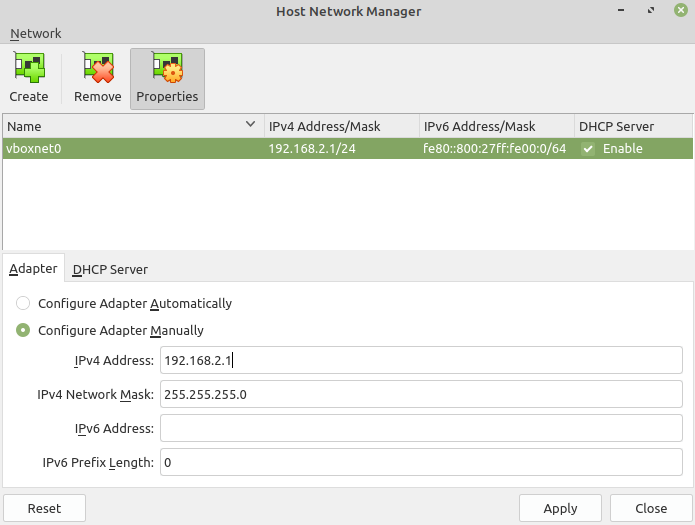
   :height: 150
   :width: 550
   :align: center

VirtualBox
^^^^^^^^^^^^^

Go to:

File -> Host Network Manager

and create network:

.. image:: ../../../../../connectivity/bluetooth/autopts/virtualbox_static_ip_1.png
   :height: 400
   :width: 500
   :align: center

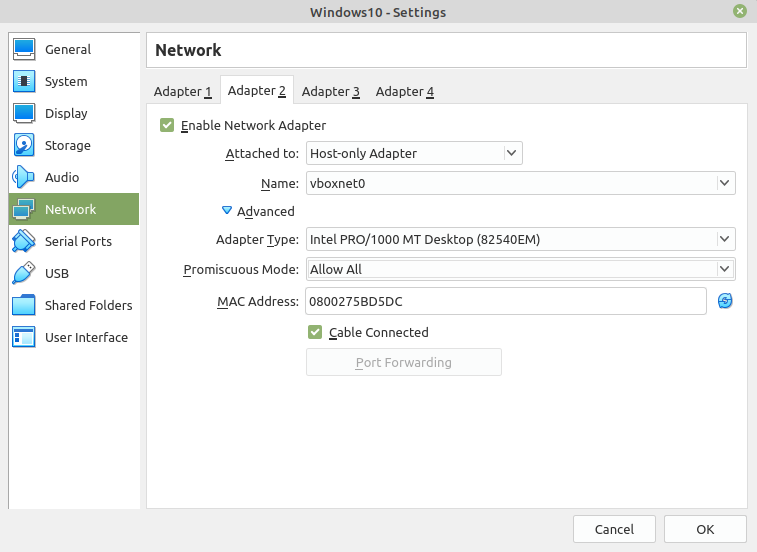
Open virtual machine network settings. On adapter 1 you will have created by default NAT.
Add adapter 2:

.. image:: ../../../../../connectivity/bluetooth/autopts/virtualbox_static_ip_2.png
   :height: 400
   :width: 500
   :align: center

Windows
^^^^^^^^
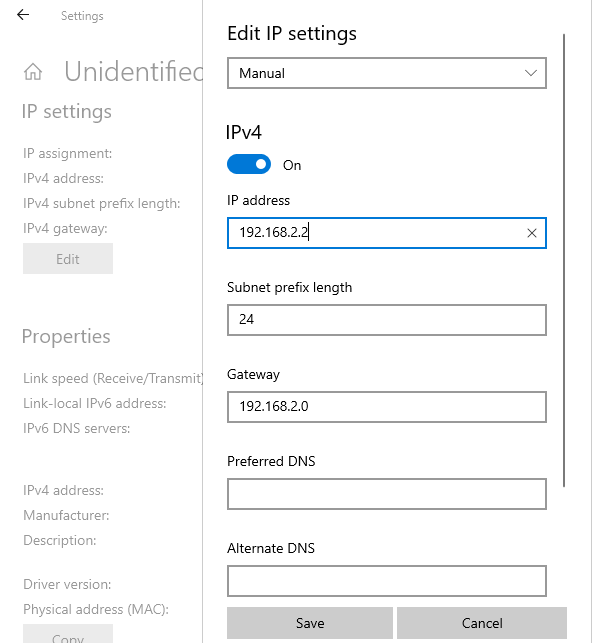
Setup static IP on Windows virtual machine. Go to

Settings -> Network & Internet -> Ethernet -> Unidentified network -> Edit

and set:

.. image:: ../../../../../connectivity/bluetooth/autopts/windows_static_ip.png
   :height: 400
   :width: 400
   :align: center

Install Python 3
-----------------

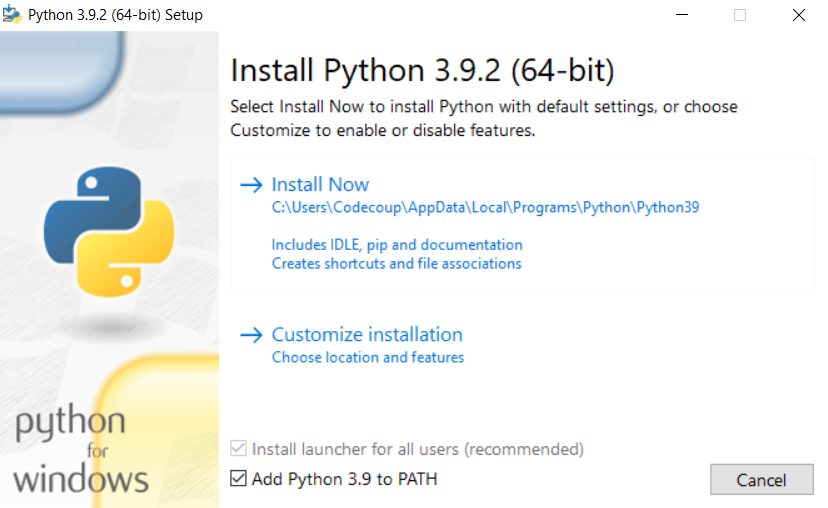
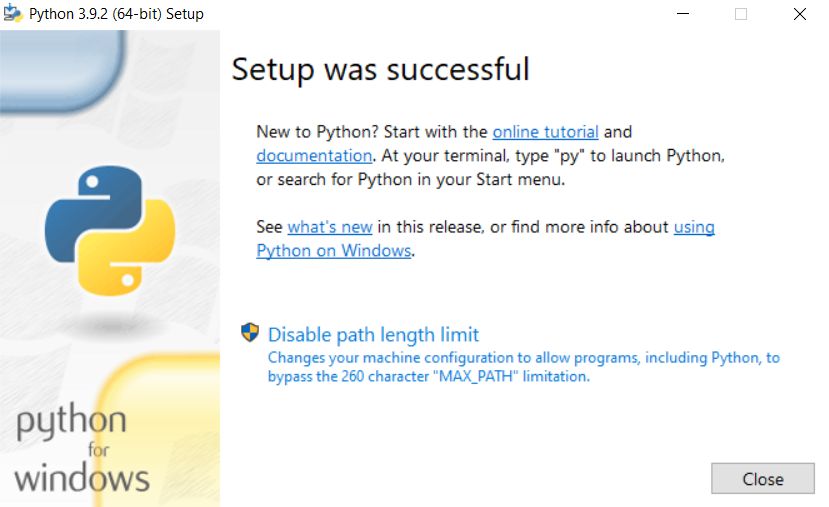
Download and install latest `Python 3 <https://www.python.org/downloads/>`_ on Windows.
Let the installer add the Python installation directory to the PATH and
disable the path length limitation.

.. image:: ../../../../../connectivity/bluetooth/autopts/install_python1.png
   :height: 300
   :width: 450
   :align: center

.. image:: ../../../../../connectivity/bluetooth/autopts/install_python2.png
   :height: 300
   :width: 450
   :align: center

Install Git
------------

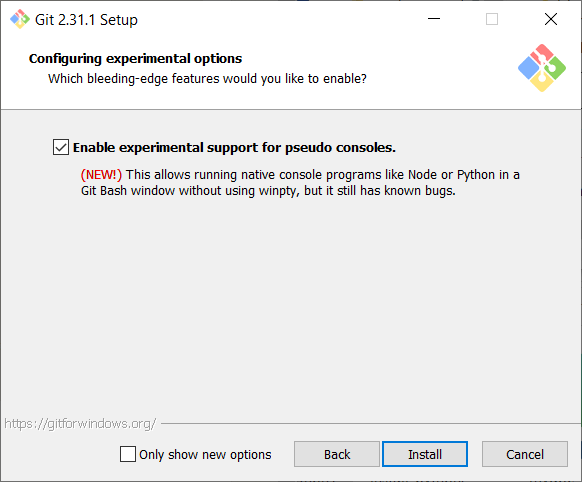
Download and install `Git <https://git-scm.com/downloads>`_.
During installation enable option: Enable experimental support for pseudo
consoles. We will use Git Bash as Windows terminal.

.. image:: ../../../../../connectivity/bluetooth/autopts/install_git.png
   :height: 350
   :width: 400
   :align: center

Install PTS 8
--------------

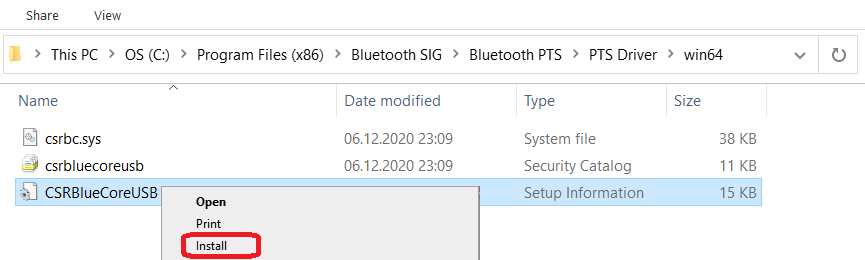
On Windows virtual machine, install latest PTS from https://www.bluetooth.org.
Remember to install drivers from installation directory
"C:/Program Files (x86)/Bluetooth SIG/Bluetooth PTS/PTS Driver/win64/CSRBlueCoreUSB.inf"

.. image:: ../../../../../connectivity/bluetooth/autopts/install_pts_drivers.png
   :height: 250
   :width: 850
   :align: center

.. note::

    Starting with PTS 8.0.1 the Bluetooth Protocol Viewer is no longer included.
    So to capture Bluetooth events, you have to download it separately.

Connect PTS dongle
--------------------

With VirtualBox there should be no problem. Just find dongle in Devices -> USB and connect.

With VMWare you might need to use some trick, if you cannot find dongle in
VM -> Removable Devices. Type in Linux terminal:

.. code-block::

    usb-devices

and find in output your PTS Bluetooth USB dongle

.. image:: ../../../../../connectivity/bluetooth/autopts/usb-devices_output.png
   :height: 100
   :width: 500
   :align: center

Note Vendor and ProdID number. Close VMWare Workstation and open .vmx of your virtual machine
(path similar to /home/codecoup/vmware/Windows 10/Windows 10.vmx) in text editor.
Write anywhere in the file following line:

.. code-block::

    usb.autoConnect.device0 = "0x0a12:0x0001"

just replace 0x0a12 with Vendor number and 0x0001 with ProdID number you found earlier.

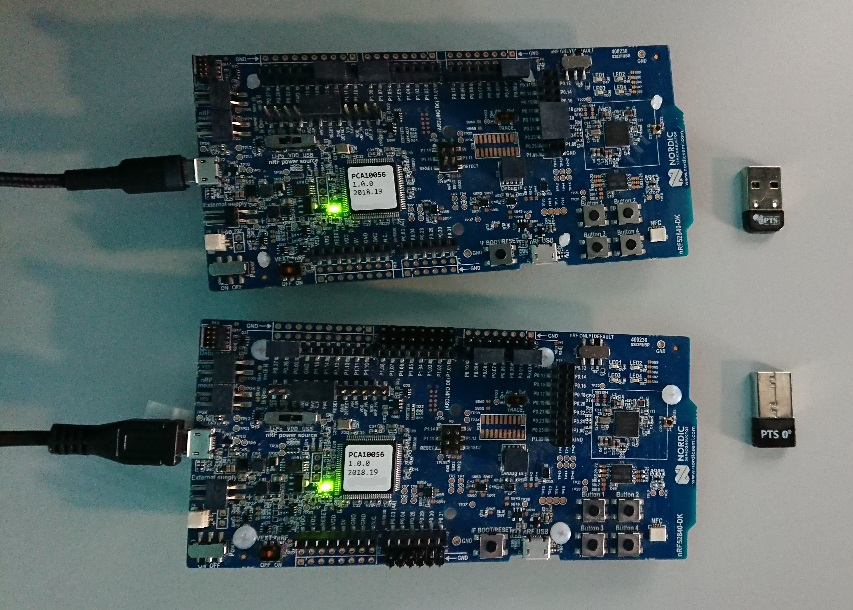
Connect devices (only required in the actual hardware test mode)
================================================================

.. image:: ../../../../../connectivity/bluetooth/autopts/devices_1.png
   :height: 400
   :width: 600
   :align: center

.. image:: ../../../../../connectivity/bluetooth/autopts/devices_2.png
   :height: 700
   :width: 500
   :align: center

Flash board (only required in the actual hardware test mode)
============================================================

On Linux, go to ~/zephyrproject. There should be already ~/zephyrproject/build
directory. Flash board:

.. code-block::

    west flash

Setup auto-pts project
=======================

AutoPTS client on Linux
------------------------

Clone auto-pts project:

.. code-block::

    git clone https://github.com/intel/auto-pts.git


Install socat, that is used to transfer BTP data stream from UART's tty file:

.. code-block::

    sudo apt-get install python-setuptools socat

Install required python modules:

.. code-block::

   cd auto-pts
   pip3 install --user wheel
   pip3 install --user -r autoptsclient_requirements.txt

Autopts server on Windows virtual machine
------------------------------------------
In Git Bash, clone auto-pts project repo:

.. code-block::

    git clone https://github.com/intel/auto-pts.git

Install required python modules:

.. code-block::

   cd auto-pts
   pip3 install --user wheel
   pip3 install --user -r autoptsserver_requirements.txt

Restart virtual machine.

Running AutoPTS
================

Server and client by default will run on localhost address. Run server:

.. code-block::

    python ./autoptsserver.py

.. image:: ../../../../../connectivity/bluetooth/autopts/autoptsserver_run_2.png
   :height: 120
   :width: 700
   :align: center

Testing Zephyr Host Stack on QEMU:

.. code-block::

    # A Bluetooth controller needs to be mounted.
    # For running with HCI UART, please visit: https://docs.zephyrproject.org/latest/samples/bluetooth/hci_uart/README.html#bluetooth-hci-uart

    python ./autoptsclient-zephyr.py "C:\Users\USER_NAME\Documents\Profile Tuning Suite\PTS_PROJECT\PTS_PROJECT.pqw6" \
    	~/zephyrproject/build/zephyr/zephyr.elf -i SERVER_IP -l LOCAL_IP


Testing Zephyr Host Stack on :ref:`native_sim <native_sim>`:

.. code-block::

    # A Bluetooth controller needs to be mounted.
    # For running with HCI UART, please visit: https://docs.zephyrproject.org/latest/samples/bluetooth/hci_uart/README.html#bluetooth-hci-uart

    west build -b native_sim zephyr/tests/bluetooth/tester/ -DEXTRA_CONF_FILE=overlay-native.conf

    sudo python ./autoptsclient-zephyr.py "C:\Users\USER_NAME\Documents\Profile Tuning Suite\PTS_PROJECT\PTS_PROJECT.pqw6" \
    	~/zephyrproject/build/zephyr/zephyr.exe -i SERVER_IP -l LOCAL_IP --hci 0


Testing Zephyr combined (controller + host) build on nRF52:

.. note::

    If the error "ImportError: No module named pywintypes" appeared after the fresh setup,
    uninstall and install the pywin32 module:

    .. code-block::

      pip install --upgrade --force-reinstall pywin32

Run client:

.. code-block::

    python ./autoptsclient-zephyr.py zephyr-master ~/zephyrproject/build/zephyr/zephyr.elf -t /dev/ACM0 \
    	-b nrf52 -l 192.168.2.1 -i 192.168.2.2

.. image:: ../../../../../connectivity/bluetooth/autopts/autoptsclient_run_2.png
   :height: 100
   :width: 800
   :align: center

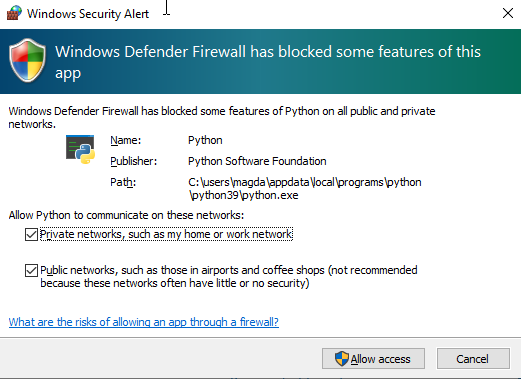
At the first run, when Windows asks, enable connection through firewall:

.. image:: ../../../../../connectivity/bluetooth/autopts/allow_firewall_2.png
   :height: 450
   :width: 600
   :align: center

Troubleshooting
================

- "After running one test, I need to restart my Windows virtual machine to run another, because of fail verdict from APICOM in PTS logs."

It means your virtual machine has not enough processor cores or memory. Try to add more in
settings. Note that a host with 4 CPUs could be not enough with VirtualBox as hypervisor.
In this case, choose rather VMWare Workstation.

- "I cannot start autoptsserver-zephyr.py. I always got error:"

.. image:: ../../../../../connectivity/bluetooth/autopts/autoptsserver_typical_error.png
   :height: 300
   :width: 650
   :align: center

One or more of the following steps should help:

- Close all PTS Windows.

- Replug PTS bluetooth dongle.

- Delete temporary workspace. You will find it in auto-pts-code/workspaces/zephyr/zephyr-master/ as temp_zephyr-master. Be careful, do not remove the original one zephyr-master.pqw6.

- Restart Windows virtual machine.
Part 3
한국어 전문 번역
AutoPTS on Linux
Linux에서 AutoPTS client를 실행하고 Windows 10 virtual machine에서 AutoPTS server를 실행하는 설정 절차입니다. Ubuntu 20.4와 Linux Mint 20.4에서 시험됐으며, Zephyr development environment가 먼저 준비되어 있어야 합니다.
지원 시험 방식
- QEMU에서 Zephyr Host Stack 시험
- native_sim에서 Zephyr Host Stack 시험
- nRF52 같은 실제 hardware에서 Controller와 Host를 결합한 Zephyr build 시험
QEMU와 native_sim 실행은 Bluetooth QEMU/native_sim 절차도 함께 참고합니다.
Linux 준비
nRF command-line tools 설치
실제 hardware 시험에서만 필요합니다. Nordic download site에서 version 10.12.1 이상의 최신 nrftools를 내려받습니다: nRF Command Line Tools.
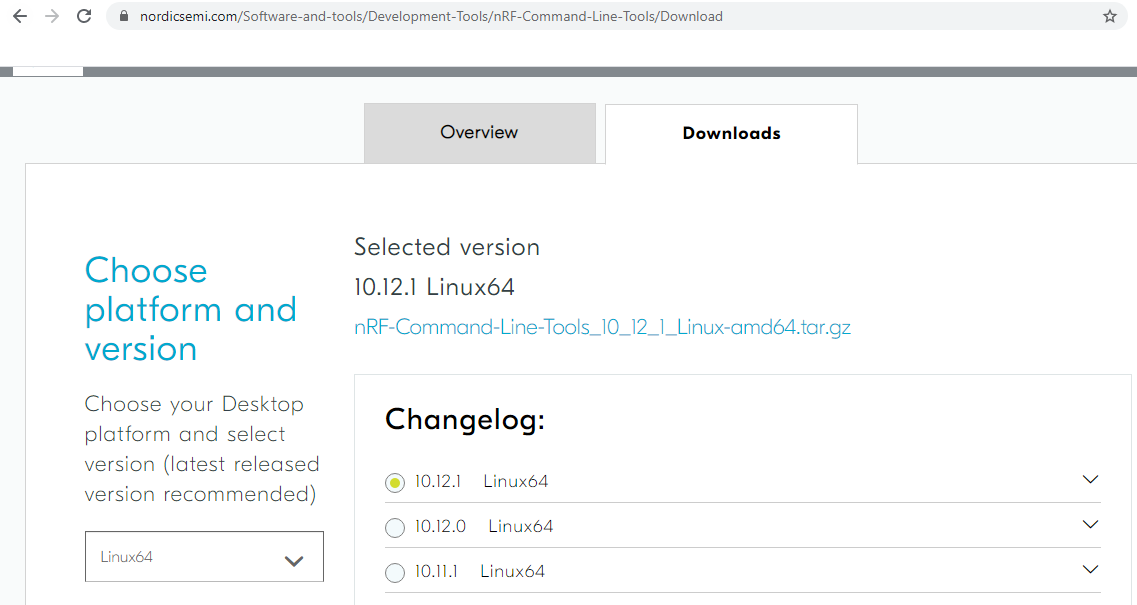
Archive를 풀면 JLink_Linux_V688a_x86_64.deb, nRF-Command-Line-Tools_10_12_1_Linux-amd64.deb 같은 두 .deb와 README.md가 있습니다. 각 package를 double-click하거나 README 지침으로 설치합니다.
Windows 10 virtual machine 준비
VMWare Workstation을 권장하지만 VirtualBox도 사용할 수 있습니다. Host CPU가 6개보다 적으면 VirtualBox에서 문제가 생길 수 있습니다. VM에는 최소 2 core를 할당하고 guest extension을 설치합니다. 이 절차는 VirtualBox 6.1.18과 VMWare Workstation 16.1.1 Pro에서 시험됐습니다.
Windows Update
Start -> Settings -> Update & Security -> Windows Update에서 Windows를 갱신합니다.
Static IP: VMWare
Linux에서 Virtual Network Editor를 열어 전용 network를 만듭니다.
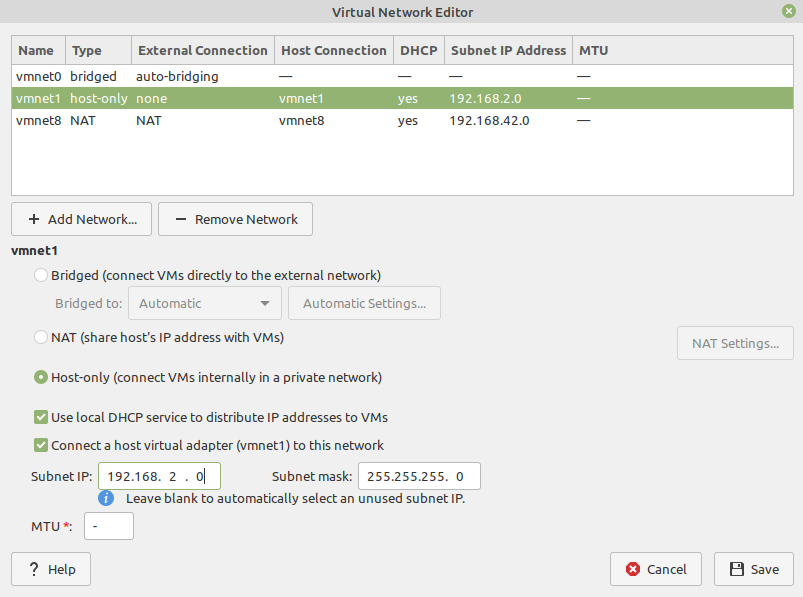
VM network 설정에 custom adapter를 추가합니다.
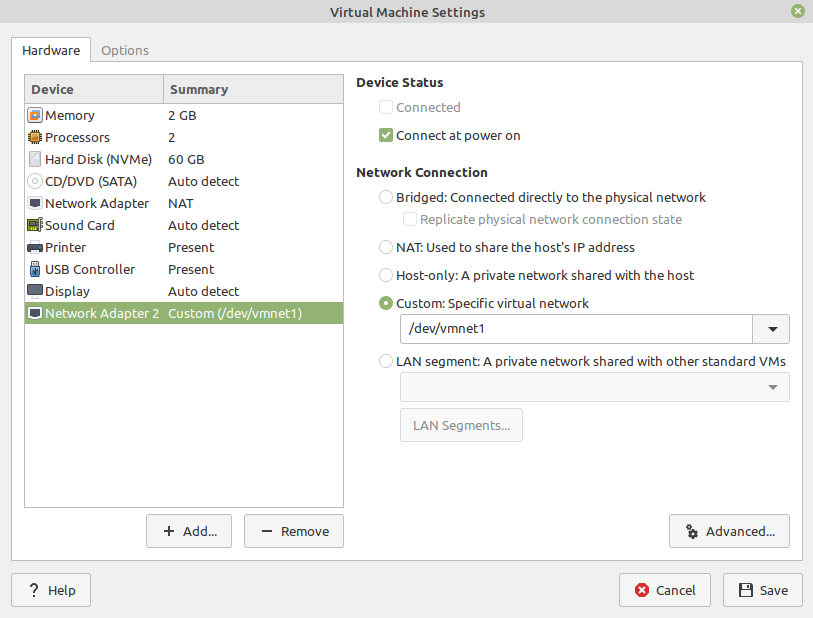
ifconfig를 실행해 host IP를 확인합니다.
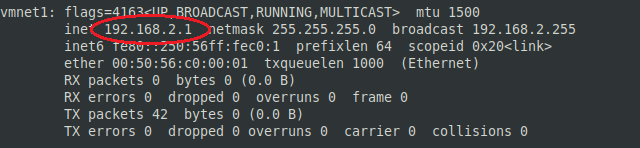
Static IP: VirtualBox
File -> Host Network Manager에서 host network를 만듭니다.
VM network 설정에서 adapter 1은 기본 NAT로 두고 adapter 2를 추가합니다.
Static IP: Windows guest
Settings -> Network & Internet -> Ethernet -> Unidentified network -> Edit에서 Windows VM의 static IP를 지정합니다.
Python 3 설치
python.org에서 최신 Python 3를 설치합니다. Installer가 Python directory를 PATH에 추가하도록 선택하고 path length 제한을 해제합니다.
Git 설치
Git을 설치하면서 Enable experimental support for pseudo consoles를 켭니다. 이후 Git Bash를 Windows terminal로 사용합니다.
PTS 8 설치
Windows VM에 Bluetooth SIG의 최신 PTS를 설치하고 C:/Program Files (x86)/Bluetooth SIG/Bluetooth PTS/PTS Driver/win64/CSRBlueCoreUSB.inf driver도 설치합니다.
PTS dongle 연결
Devices -> USB에서 바로 연결할 수 있는 VirtualBox와 달리 VMWare의 VM -> Removable Devices에서 dongle이 보이지 않으면 Linux에서 다음을 실행합니다.
usb-devices
Vendor와 ProdID를 기록하고 VMWare를 닫습니다. /home/codecoup/vmware/Windows 10/Windows 10.vmx와 같은 VM .vmx file에 다음 줄을 추가하되 실제 ID로 바꿉니다.
usb.autoConnect.device0 = "0x0a12:0x0001"Hardware 연결과 flash
다음 연결 그림은 실제 hardware 시험 mode에서만 필요합니다.
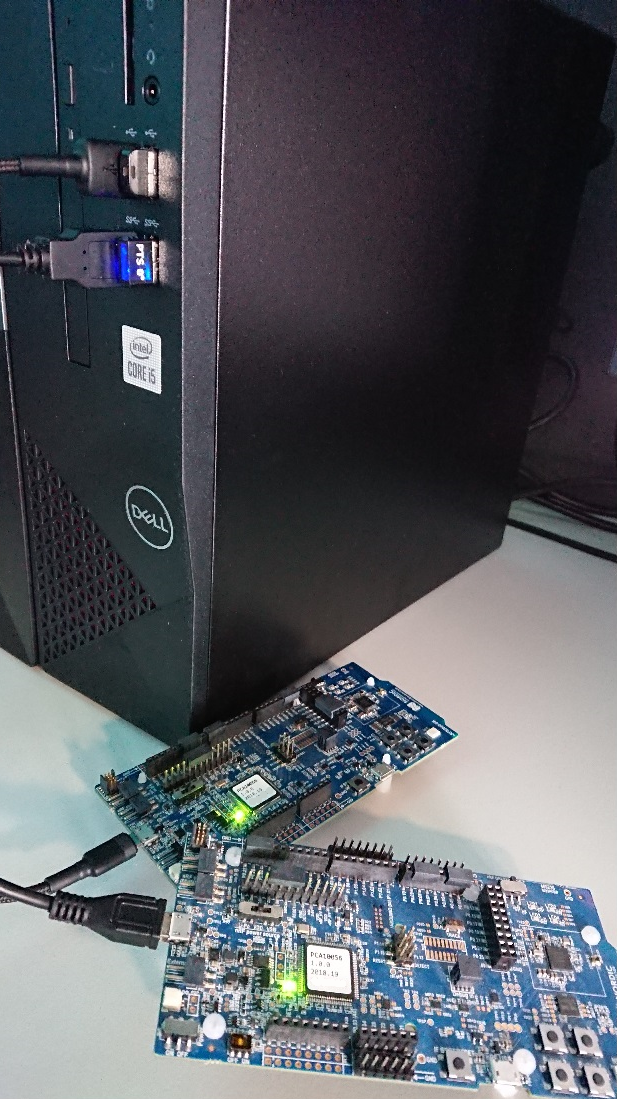
~/zephyrproject로 이동합니다. 기존 ~/zephyrproject/build directory의 build를 board에 flash합니다.
west flashauto-pts project 준비
Linux AutoPTS client
AutoPTS repository를 clone합니다.
git clone https://github.com/intel/auto-pts.gitUART tty file의 BTP data stream을 전달할 socat와 Python setuptools를 설치합니다.
sudo apt-get install python-setuptools socatClient에 필요한 Python module을 설치합니다.
cd auto-pts
pip3 install --user wheel
pip3 install --user -r autoptsclient_requirements.txt
Windows VM AutoPTS server
Git Bash에서 같은 repository를 clone합니다.
git clone https://github.com/intel/auto-pts.gitServer Python module을 설치하고 VM을 restart합니다.
cd auto-pts
pip3 install --user wheel
pip3 install --user -r autoptsserver_requirements.txt
AutoPTS 실행
Server와 client는 기본적으로 localhost를 사용합니다. Windows VM에서 server를 실행합니다.
python ./autoptsserver.py
QEMU의 Zephyr Host Stack
Bluetooth controller를 mount해야 합니다. HCI UART를 쓸 경우 code block의 공식 안내 URL을 따릅니다.
 # A Bluetooth controller needs to be mounted.
 # For running with HCI UART, please visit: https://docs.zephyrproject.org/latest/samples/bluetooth/hci_uart/README.html#bluetooth-hci-uart

 python ./autoptsclient-zephyr.py "C:\Users\USER_NAME\Documents\Profile Tuning Suite\PTS_PROJECT\PTS_PROJECT.pqw6" \
 	~/zephyrproject/build/zephyr/zephyr.elf -i SERVER_IP -l LOCAL_IP
native_sim의 Zephyr Host Stack
Bluetooth controller를 mount하고 native overlay로 tester를 build한 뒤 지정 server/local IP로 client를 실행합니다.
 # A Bluetooth controller needs to be mounted.
 # For running with HCI UART, please visit: https://docs.zephyrproject.org/latest/samples/bluetooth/hci_uart/README.html#bluetooth-hci-uart

 west build -b native_sim zephyr/tests/bluetooth/tester/ -DEXTRA_CONF_FILE=overlay-native.conf

 sudo python ./autoptsclient-zephyr.py "C:\Users\USER_NAME\Documents\Profile Tuning Suite\PTS_PROJECT\PTS_PROJECT.pqw6" \
 	~/zephyrproject/build/zephyr/zephyr.exe -i SERVER_IP -l LOCAL_IP --hci 0
nRF52 Controller+Host build
실제 board tty, nRF52 target과 VM/host IP를 지정해 client를 실행합니다.
 python ./autoptsclient-zephyr.py zephyr-master ~/zephyrproject/build/zephyr/zephyr.elf -t /dev/ACM0 \
 	-b nrf52 -l 192.168.2.1 -i 192.168.2.2
첫 실행 때 Windows가 요청하면 firewall 연결을 허용합니다.
Troubleshooting
한 test 뒤 APICOM fail로 다음 test를 실행할 수 없음
VM processor core나 memory가 부족한 경우입니다. Resource를 늘리십시오. Host CPU 4개인 VirtualBox는 부족할 수 있으므로 이때는 VMWare Workstation을 사용합니다.
autoptsserver-zephyr.py를 시작할 수 없음
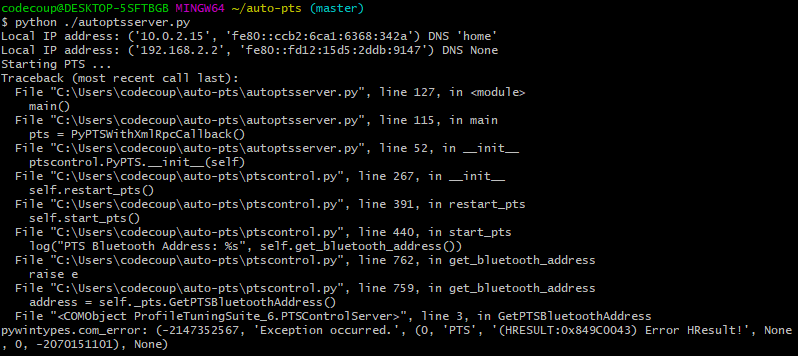
다음을 차례로 시도합니다.
- 모든 PTS window 닫기
- PTS Bluetooth dongle을 뺐다가 다시 연결
auto-pts-code/workspaces/zephyr/zephyr-master/temp_zephyr-mastertemporary workspace 삭제. 원본zephyr-master.pqw6는 삭제하지 않음- Windows VM restart
Source
출처
영어 원문에는 문단, 문서 지시문, 표, 코드, 코드 심벌, 경로를 그대로 보존했습니다.