Part 1
요약·해설
Terminal과 GUI 실행 명령, key 조작, .config 저장, jump-to와 show-all mode를 설명합니다.
menuconfig
guiconfig
zephyr/.config
/ · show-all
Part 2
접을 수 있는 영어 원문 전체
영어 원문 전체 펼치기
1BDFC4631D29F6D14F2AD2C80C1F0CC334BC5CFFE9F32BC7EFAE8BEA901FA6B1
.. _menuconfig:

Interactive Kconfig interfaces
##############################

There are two interactive configuration interfaces available for exploring the
available Kconfig options and making temporary changes: ``menuconfig`` and
``guiconfig``. ``menuconfig`` is a curses-based interface that runs in the
terminal, while ``guiconfig`` is a graphical configuration interface.

.. note::

   The configuration can also be changed by editing :file:`zephyr/.config` in
   the application build directory by hand. Using one of the configuration
   interfaces is often handier, as they correctly handle dependencies between
   configuration symbols.

   If you try to enable a symbol with unsatisfied dependencies in
   :file:`zephyr/.config`, the assignment will be ignored and overwritten when
   re-configuring.

To make a setting permanent, you should set it in a :file:`*.conf` file, as
described in :ref:`setting_configuration_values`.

.. tip::

   Saving a minimal configuration file (with e.g. :kbd:`D` in menuconfig) and
   inspecting it can be handy when making settings permanent. The minimal
   configuration file only lists symbols that differ from their default value.

To run one of the configuration interfaces, do this:

#. Build your application as usual using either ``west`` or ``cmake``:

   .. zephyr-app-commands::
      :tool: all
      :cd-into:
      :board: <board>
      :goals: build
      :compact:

#. To run the terminal-based ``menuconfig`` interface, use either of these
   commands:

   .. code-block:: bash

      west build -t menuconfig

   .. code-block:: bash

      ninja menuconfig

   To run the graphical ``guiconfig``, use either of these commands:

   .. code-block:: bash

      west build -t guiconfig

   .. code-block:: bash

      ninja guiconfig

   .. note::

      If you get an import error for ``tkinter`` when trying to run
      ``guiconfig``, you are missing required packages. See
      :ref:`installation_linux`. The package you need is usually called
      something like ``python3-tk``/``python3-tkinter``.

      ``tkinter`` is not included by default in many Python installations,
      despite being part of the standard library.

   The two interfaces are shown below:

   .. figure:: ../../../../build/kconfig/menuconfig.png
      :alt: menuconfig interface

   .. figure:: ../../../../build/kconfig/guiconfig.png
      :alt: guiconfig interface

   ``guiconfig`` always shows the help text and other information related to
   the currently selected item in the bottom window pane. In the terminal
   interface, press :kbd:`?` to view the same information.

   .. note::

      If you prefer to work in the ``guiconfig`` interface, then it's a good
      idea to check any changes to Kconfig files you make in *single-menu
      mode*, which is toggled via a checkbox at the top. Unlike full-tree
      mode, single-menu mode will distinguish between symbols defined with
      ``config`` and symbols defined with ``menuconfig``, showing you what
      things would look like in the ``menuconfig`` interface.

#. Change configuration values in the ``menuconfig`` interface as follows:

   * Navigate the menu with the arrow keys. Common `Vim
     <https://www.vim.org>`__ key bindings are supported as well.

   * Use :kbd:`Space` and :kbd:`Enter` to enter menus and toggle values. Menus
     appear with ``--->`` next to them. Press :kbd:`ESC` to return to the
     parent menu.

     Boolean configuration options are shown with :guilabel:`[ ]` brackets,
     while numeric and string-valued configuration symbols are shown with
     :guilabel:`( )` brackets. Symbol values that can't be changed are shown as
     :guilabel:`- -` or :guilabel:`-*-`.

     .. note::

        You can also press :kbd:`Y` or :kbd:`N` to set a boolean configuration
        symbol to the corresponding value.

   * Press :kbd:`?` to display information about the currently selected symbol,
     including its help text. Press :kbd:`ESC` or :kbd:`Q` to return from the
     information display to the menu.

   In the ``guiconfig`` interface, either click on the image next to the symbol
   to change its value, or double-click on the row with the symbol (this only
   works if the symbol has no children, as double-clicking a symbol with
   children open/closes its menu instead).

   ``guiconfig`` also supports keyboard controls, which are similar to
   ``menuconfig``.

#. Pressing :kbd:`Q` in the ``menuconfig`` interface will bring up the
   save-and-quit dialog (if there are changes to save):

   .. figure:: ../../../../build/kconfig/menuconfig-quit.png
      :alt: Save and Quit Dialog

   Press :kbd:`Y` to save the kernel configuration options to the default
   filename (:file:`zephyr/.config`). You will typically save to the default
   filename unless you are experimenting with different configurations.

   The ``guiconfig`` interface will also prompt for saving the configuration on
   exit if it has been modified.

   .. note::

      The configuration file used during the build is always
      :file:`zephyr/.config`. If you have another saved configuration that you
      want to build with, copy it to :file:`zephyr/.config`. Make sure to back
      up your original configuration file.

      Also note that filenames starting with ``.`` are not listed by ``ls`` by
      default on Linux and macOS. Use the ``-a`` flag to see them.

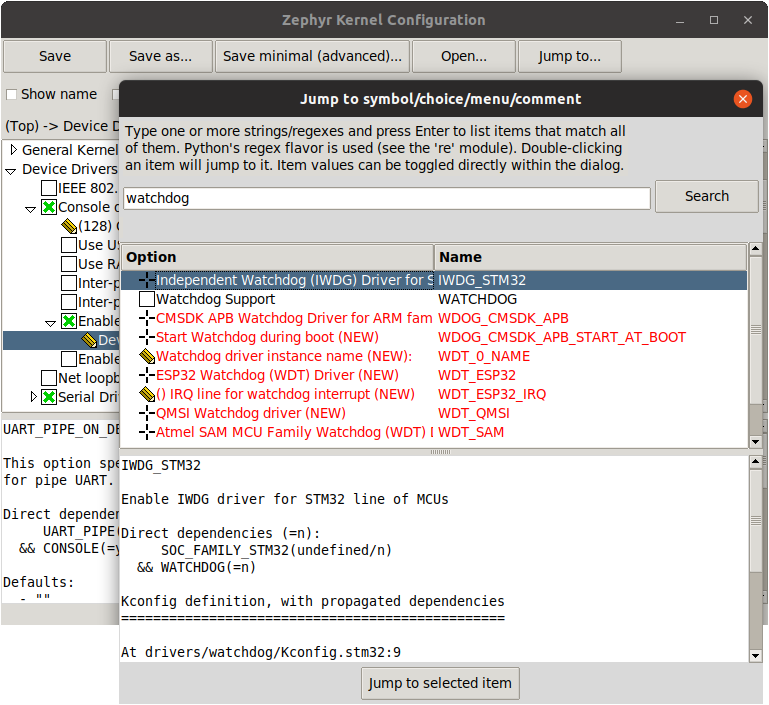
Finding a symbol in the menu tree and navigating to it can be tedious. To jump
directly to a symbol, press the :kbd:`/` key (this also works in
``guiconfig``). This brings up the following dialog, where you can search for
symbols by name and jump to them. In ``guiconfig``, you can also change symbol
values directly within the dialog.

.. figure:: ../../../../build/kconfig/menuconfig-jump-to.png
   :alt: menuconfig jump-to dialog

.. figure:: ../../../../build/kconfig/guiconfig-jump-to.png
   :alt: guiconfig jump-to dialog

If you jump to a symbol that isn't currently visible (e.g., due to having
unsatisfied dependencies), then *show-all mode* will be enabled. In show-all
mode, all symbols are displayed, including currently invisible symbols. To turn
off show-all mode, press :kbd:`A` in ``menuconfig`` or :kbd:`Ctrl-A` in
``guiconfig``.

.. note::

   Show-all mode can't be turned off if there are no visible items in the
   current menu.

To figure out why a symbol you jumped to isn't visible, inspect its
dependencies, either by pressing :kbd:`?` in ``menuconfig`` or in the
information pane at the bottom in ``guiconfig``. If you discover that the
symbol depends on another symbol that isn't enabled, you can jump to that
symbol in turn to see if it can be enabled.

.. note::

   In ``menuconfig``, you can press :kbd:`Ctrl-F` to view the help of the
   currently selected item in the jump-to dialog without leaving the dialog.

For more information on ``menuconfig`` and ``guiconfig``, see the Python
docstrings at the top of :zephyr_file:`menuconfig.py
<scripts/kconfig/menuconfig.py>` and :zephyr_file:`guiconfig.py
<scripts/kconfig/guiconfig.py>`.
Part 3
한국어 전문 번역
Interactive Kconfig interface
사용 가능한 Kconfig option을 탐색하고 임시 변경하는 interface는 두 가지입니다. menuconfig는 terminal에서 실행되는 curses interface이고 guiconfig는 graphical interface입니다.
영구 설정은 *.conf file에 넣어야 합니다. Menuconfig에서 D로 minimal configuration을 저장하면 default와 다른 symbol만 기록되므로 영구 설정을 만들 때 유용합니다.
실행 방법
- 먼저
west또는cmake로 application을 평소처럼 build합니다. - Terminal interface는 다음 명령 중 하나로 실행합니다.
west build -t menuconfigninja menuconfigGraphical guiconfig는 다음 명령 중 하나로 실행합니다.
west build -t guiconfigninja guiconfig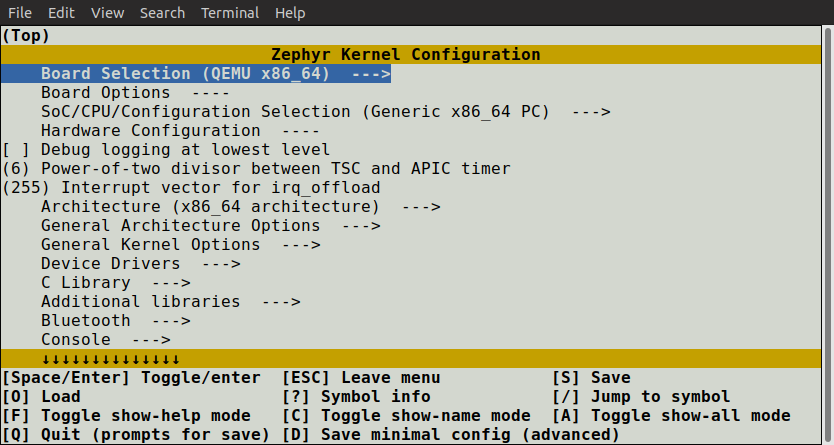
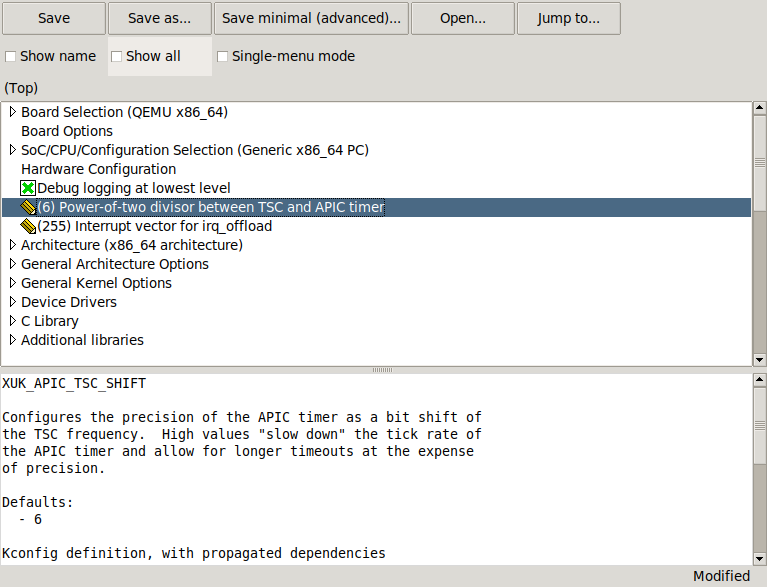
guiconfig는 선택한 항목의 help와 정보를 아래 pane에 항상 표시합니다. Terminal interface에서는 ?를 눌러 같은 정보를 봅니다.
guiconfig로 Kconfig file 변경을 확인할 때는 위쪽 checkbox의 single-menu mode도 확인하는 것이 좋습니다. Full-tree mode와 달리 config와 menuconfig로 정의한 symbol을 구분해 terminal menuconfig에서 보이는 구조를 확인할 수 있습니다.
값 변경 방법
- Arrow key로 menu를 이동합니다. 일반적인 Vim key binding도 지원합니다.
- Space와 Enter로 menu에 들어가거나 값을 toggle합니다. Menu 옆에는
--->가 표시되며 ESC로 parent menu로 돌아갑니다. - Boolean option은
[ ], numeric·string symbol은( )로 표시됩니다. 바꿀 수 없는 값은- -또는-*-입니다. - Boolean symbol은 Y 또는 N으로 직접 설정할 수 있습니다.
- ?는 선택한 symbol의 help와 정보를 표시하고 ESC 또는 Q로 menu로 돌아갑니다.
guiconfig에서는 symbol 옆 image를 click하거나 row를 double-click해 값을 바꿉니다. Child가 있는 symbol의 double-click은 값을 바꾸는 대신 menu를 열거나 닫습니다. Keyboard control도 menuconfig와 비슷합니다.
저장과 종료
menuconfig에서 Q를 누르면 변경 사항이 있을 때 save-and-quit dialog가 나타납니다.
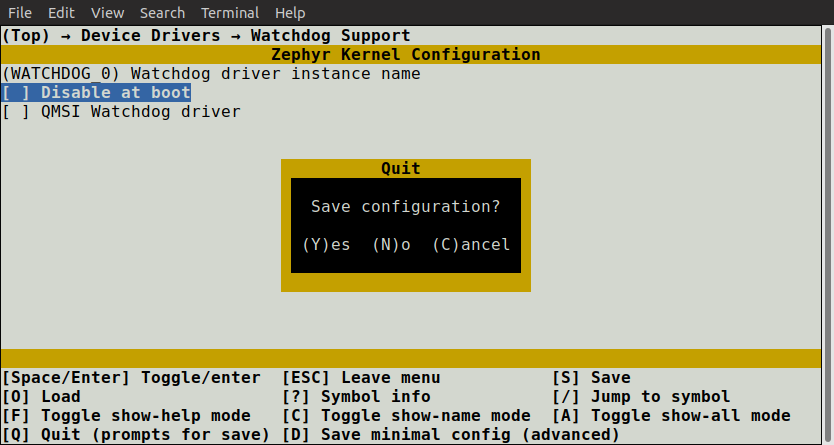
Y를 누르면 kernel configuration을 기본 filename인 zephyr/.config에 저장합니다. 다른 configuration을 실험하는 경우가 아니면 보통 기본 이름을 사용합니다. guiconfig도 변경했다면 종료 시 저장 여부를 묻습니다.
Symbol 검색과 jump
Menu tree에서 symbol을 직접 찾기 어렵다면 /를 누릅니다. 두 interface 모두 이름으로 symbol을 검색해 바로 이동할 수 있고, guiconfig에서는 dialog 안에서 값도 변경할 수 있습니다.
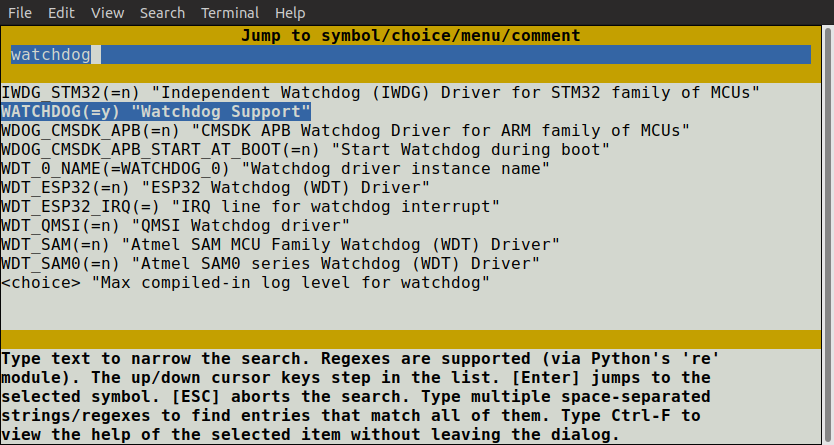
Dependency가 충족되지 않아 현재 보이지 않는 symbol로 이동하면 show-all mode가 enable되어 invisible symbol까지 모두 표시합니다. 끄려면 menuconfig에서 A, guiconfig에서 Ctrl-A를 누릅니다. 현재 menu에 visible item이 하나도 없으면 show-all mode를 끌 수 없습니다.
Symbol이 보이지 않는 이유는 menuconfig의 ? 또는 guiconfig 아래 information pane에서 dependency를 확인합니다. 다른 symbol이 enable되어야 한다면 다시 그 symbol로 jump해 enable 가능 여부를 조사합니다. Menuconfig jump dialog에서는 Ctrl-F로 dialog를 떠나지 않고 선택 항목의 help를 볼 수 있습니다.
더 자세한 조작법은 scripts/kconfig/menuconfig.py와 scripts/kconfig/guiconfig.py 첫 부분의 Python docstring에 있습니다.
Source
출처
영어 원문에는 문단, 문서 지시문, 표, 코드, 코드 심벌, 경로를 그대로 보존했습니다.